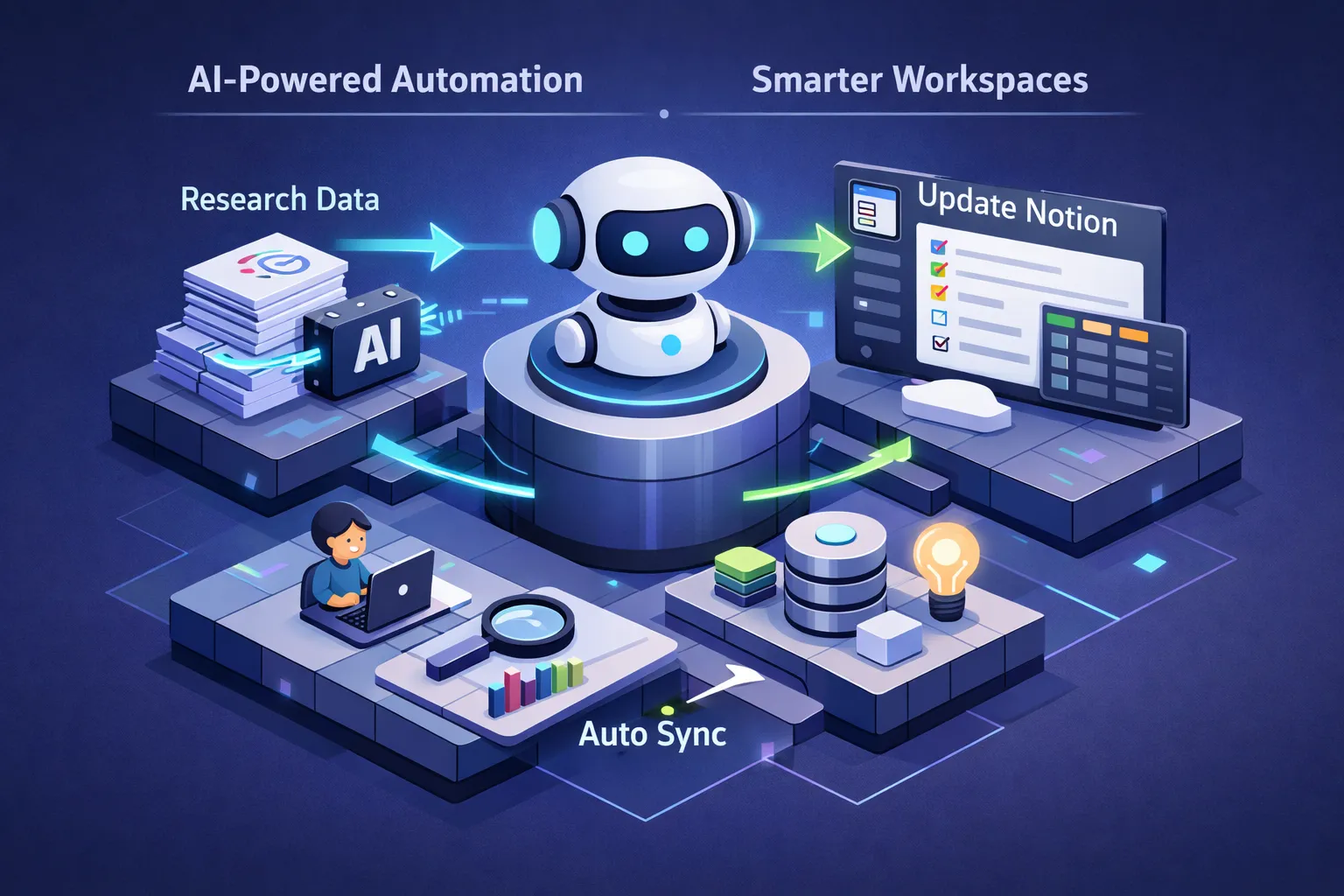
You ran the research. You found the insight. And now you're copying it into a Notion page by hand, one field at a time. The copy-paste step is the actual bottleneck in most knowledge workflows, and almost nobody talks about it directly. Tools promise smarter AI, better search, cleaner summaries, but the last mile—getting structured output into the right Notion database row without touching it yourself—still gets treated as an afterthought.
So: can AI automatically update your Notion workspace with research? Yes. But the approach you choose determines how hands-off the process actually is. Some tools route data that already exists. Others run the full research task on a schedule and push a formatted result into Notion via the API. The difference matters. This article walks through what setup looks like, which tools handle which part, use cases to automate first, and trade-offs before you build anything.
Can AI Automatically Update My Notion Workspace? What It Actually Looks Like
The most common misconception is that "Notion AI" handles this end to end. It doesn't, at least not the way most people expect. Notion's built-in AI and an external agent pushing research into your workspace are different problems; conflating them wastes setup time.
How the Notion API Makes Automated Updates Possible
Notion exposes a REST API that lets external services create pages, add database rows, and update properties programmatically. A POST to /v1/pages creates a new page or database item; PATCH to /v1/pages/{page_id} updates page properties (see Notion's reference for databases vs pages). Without an API connection, "automation" is still manual entry in a different costume.
What Notion's Native Research Mode Actually Does
Notion AI Research Mode analyzes open-ended queries, searches your connected workspace and the web (via Exa), and produces synthesized reports you can save as pages. It is useful for deep dives. It isn't scheduled, doesn't run autonomously on a calendar, and won't keep an existing database current without you prompting each time. Think assistant you tap on the shoulder, not a cron job.
Where AI Agents Fit In
An agent sits outside Notion, gathers context (web, files, prior runs), formats output, and writes through the API. It can repeat on a schedule and target the same database. For how agents use a real browser before writing elsewhere, see Cloud Browser Automation: How AI Agents Browse the Web. The rest of this piece assumes that "full loop" model: research plus write, not just Zapier-style routing.
The Use Cases Worth Automating First
Not every research task deserves automation. Strong candidates repeat on a fixed cadence and produce structured output—they already cost real time when done manually. Abstract "we should use AI" is cheap; concrete workflows are what save hours.
Competitor Monitoring and Weekly Intelligence Briefs
Pattern: on a schedule, gather pricing or changelog signals from a defined set of sources, summarize in a fixed schema, append a row to a competitive intel database (date, source, category, summary). You stop opening five tabs every Monday; you review Notion when you decide.
Content Research and Market Signal Digests
Pull from news, RSS, or search results; summarize; land rows in a content or market-signal database. Same idea: consistent format, recurring cadence, so editorial or GTM can scan one view.
Meeting Prep and Recurring Report Population
Before recurring meetings, compile the same class of context—performance notes, competitive snippets, links—and drop them into a prep page or database. The automation is the boring assembly; you still own the decision.
How AI Can Automatically Update Notion: Tool Categories
Each category has a real use case and a real ceiling.
No-Code Automation Platforms
Make, Zapier, n8n, and similar tools connect triggers to Notion actions: new RSS item → new row, form submit → page, webhook → property update. They excel when the payload already exists. They do not, by themselves, "do the research"—you wire the LLM step, formatting, and error handling yourself. What starts as no-code often grows into fragile JSON mapping.
Notion's Native Automation Agents
On Business and Enterprise, Notion ships automations triggered by database changes, schedules, or Slack. They are tightly integrated and avoid a separate subscription for that layer. They are scoped to Notion's ecosystem: they won't autonomously browse arbitrary competitor sites and compile a bespoke brief unless that data is already inside Notion or a connected source.
CloudyBot: Notion Reporter (scheduled employee)
CloudyBot includes an employee template called Notion Reporter: each scheduled run produces structured research or a status-style update and persists it to your Notion workspace using your Notion integration token (NOTION_API_KEY stored as a user credential—never logged in outputs). The template uses web_search and files, keeps a short run log under notion-runs/ in the file workspace, and reports success or API errors in the thread. In product code it is planMin: 'growth', so you need at least the Growth plan ($29/mo on the public table) to hire this template—not the Free tier.
That is different from a pure router: the agent is responsible for the research pass and the Notion write, within your prompt and Notion's API constraints. You still define topic, output shape, and which database or page the integration can access.
How to Set Up an AI-to-Notion Research Workflow
These steps apply whether you use CloudyBot or a no-code stack; they prevent the usual foot-guns.
Step 1: Create a Notion Integration and Share the Right Pages
At notion.so/my-integrations, create an integration, copy the token, then open the target database or page → Share → invite the integration. Share only what the automation needs—least privilege limits blast radius if a token leaks.
Step 2: Define Research Scope and Output Schema
Before wiring tools, specify what "done" looks like: properties, date format, max length. Notion rich text has practical limits (often cited around 2,000 characters per rich-text field—verify against Notion's page content guide for your property types). Long summaries may need splitting across blocks or fields.
Step 3: Run One Manual Cycle Before Scheduling
Execute a single end-to-end run. Confirm property types, titles, and enums match what the API expects. One dry run catches formatting errors before silent weekly failures.
Trade-Offs to Understand Before You Automate
API rate limits: Notion documents roughly three requests per second per integration on average; batch large writes and respect block payload sizes (often discussed in chunks of ~100 blocks—confirm current docs).
Secrets: Treat the integration token like a password—env or credential store, rotation, narrow share scope.
Drift: Prompts and business questions change. Revisit monthly whether output still matches what you need.
Cost: Scheduled LLM plus Notion calls add up. CloudyBot meters AI credits, browser sessions, and web searches per plan, with hard caps so background jobs do not produce surprise invoices—see what hard billing caps mean.
Your Notion Workspace Can Stay Current Without Manual Copy-Paste
The bottleneck is solvable. Simple routing from an existing source fits no-code tools. A workflow that goes out, researches, and writes on a cadence needs an agent layer and a Notion integration.
On CloudyBot: start from the dashboard, confirm you are on Growth or higher if you want the Notion Reporter template, add your NOTION_API_KEY in credentials, share the target database with your integration, then run one manual job before enabling the schedule. The Free tier is still useful for other CloudyBot work—but this specific template requires Growth+ in product code today.
Pick the single automation that would save the most time this week and prove that loop first.
Related reading
- How the Workflow Architect builds your AI team in one conversation
- Cloud browser automation: how AI agents actually browse the web
- AI knowledge base for teams
Ready to automate this? CloudyBot can handle tasks like this on a schedule — with a real browser, memory, and WhatsApp delivery.
Put my work on autopilot → →Free: 50 AI credits/month + earn bonuses, no card required